
When does it make sense to replace old technology and when to save it?
An older computer or laptop doesn't necessarily mean it's time to replace it. In many cases, a simple upgrade, system cleanup, or replacement of a specific component can help. Other times, another investment doesn't make economic or practical sense and it's wiser to upgrade to a new device.
The most important question is therefore not only:
How old is the device?
What limits it today and is it still worth solving this problem?
1. First, find out the cause
A slow device may not automatically be outdated. The problem could be caused by a disk, lack of memory, software, or cooling, for example.
2. Compare the price with the result
A cheap upgrade can significantly extend the lifespan. For a more expensive repair, you need to consider what you're really getting for your investment.
3. Think about support and safety
Functional hardware does not automatically mean that the device is suitable for continued long-term use.
What does "old technology" actually mean?
Age alone is not the most important factor in making a decision.
Two devices of the same age can be in completely different states. One may continue to function for office work without any problems, while the other may no longer be able to handle the applications its user needs.
Therefore, when making a decision, pay attention to the following:
- actual device performance,
- technical condition,
- possibility of further expansion,
- availability of spare parts,
- compatibility with the software used,
- operating system support,
- reliability,
- method of use.
For example, a few years old office computer can still handle the web, email, and common documents without any problems. Conversely, a significantly younger laptop can be practically unusable if it has little memory, a very small disk, or a design that does not allow for any expansion.
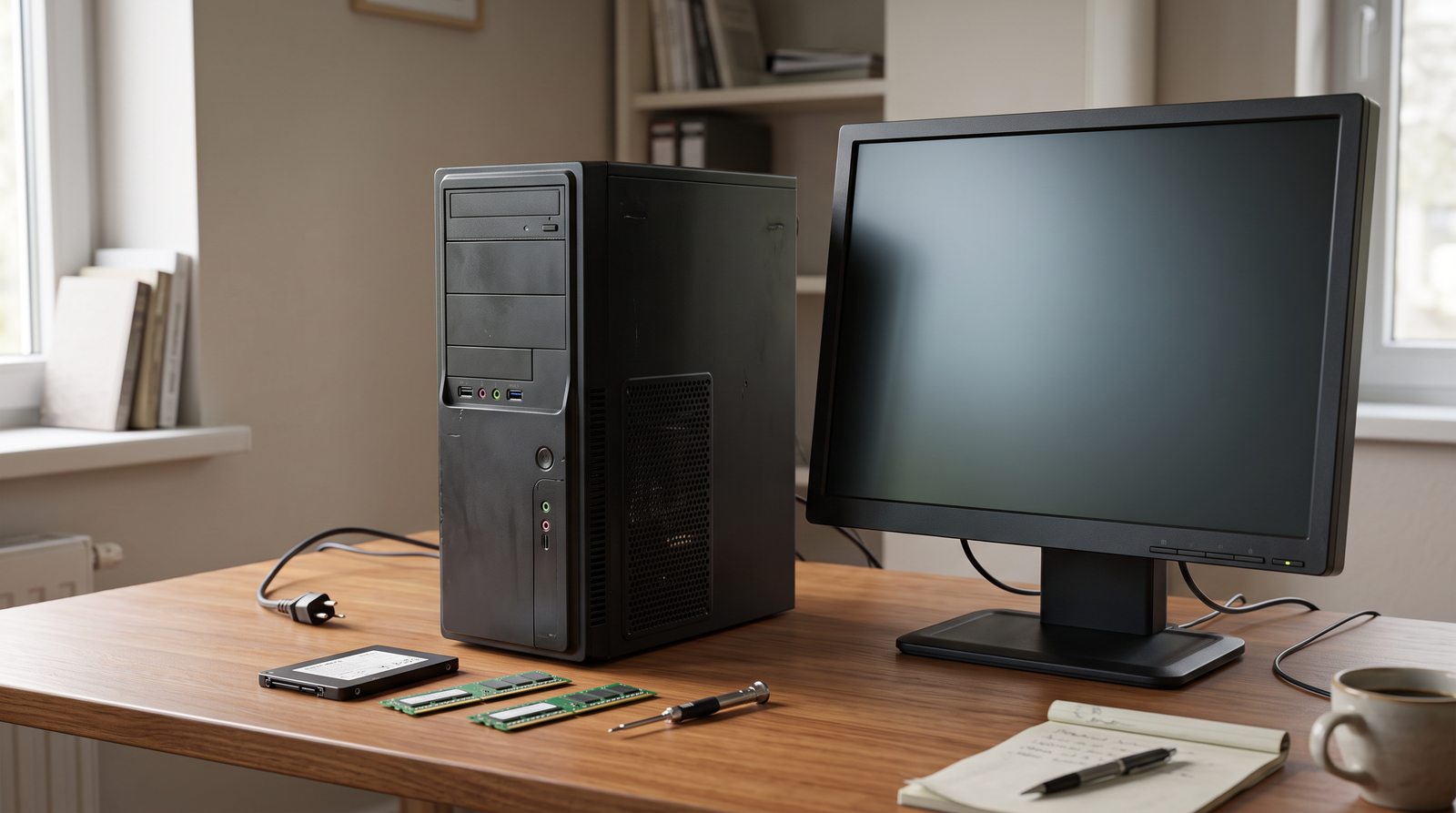
When does it still make sense to save the device?
The device is slow, but otherwise works well
A typical example is a computer that takes a long time to boot, applications respond slowly, but is otherwise stable and the processor performance still matches what you are using it for.
In such a case, it may help, for example:
- replacing old HDD with SSD ,
- RAM expansion ,
- removing unnecessary programs,
- system cleaning,
- clean installation of the operating system,
- temperature control and cooling.
Replacing a mechanical drive with an SSD is one of the upgrades for older computers that can have a very significant impact on the normal response of the system.
The problem is in one easily replaceable component
If the device is otherwise satisfactory and only one component is causing the problem, repair often makes sense.
It could be, for example:
- disk,
- RAM,
- battery,
- ventilator,
- power adapter,
- some connectors or other serviceable parts.
The decisive factor is how complex and expensive the repair is and what condition the rest of the equipment is in.
Performance still meets your needs
It is not necessary to change technology just because there are newer and more powerful models.
If the device still reliably handles everything you need from it, its continued use may be completely rational.
A user who works mostly with email, the web, and office documents has different requirements, and someone who works with video, 3D graphics, or demanding applications has different requirements.

When does it make sense to upgrade?
Upgrade options vary significantly depending on the type of device.
Desktop computer
A desktop computer usually has the greatest room for modernization.
Often can be replaced or expanded:
- RAM,
- SSD or other storage,
- graphics card,
- processor within a supported platform,
- possibly other components.
Laptop
With laptops, the options tend to be more limited.
Depending on the specific model, the following can often be replaced or expanded:
- SSD,
- RAM,
- battery,
- possibly some other serviceable components.
But with a desktop computer, it's important to consider the system as a whole. For example, a more powerful graphics card may not deliver the expected effect if it's severely limited by an older processor . A new component may also require a more powerful power supply or a different interface.
In many modern laptops, the RAM is soldered directly to the motherboard. The processor and graphics chip are also non-replaceable in most cases.
It is therefore a good idea to consider the possibility of future upgrades when purchasing the device.

When does a repair or upgrade no longer make sense?
There is no one universal rule to follow when making a decision, but there are several signals that further investment may no longer be wise.
The device has several problems at the same time
Replacing the drive alone can be inexpensive, but if you also have a bad battery, a damaged display, overheating cooling, and underperforming hardware, the individual repairs start to add up.
In such a situation, an exchange may be economically and practically better.
Repair is expensive considering the value of the device
The cost of repair should not be compared only to the original purchase price. It is more important to compare it to the value and lifespan of the device after repair.
The platform is no longer powerful enough
Some limits simply cannot be removed. If the processor, graphics performance, or the entire architecture of the device is severely limited, adding RAM or a faster disk may only partially help.
Upgrading one component will not solve all the weaknesses of the older platform.
Spare parts are expensive or difficult to obtain
For some devices, there may be a problem with the availability of original or compatible parts. This is especially true for older laptops and devices with a design that is not well serviceable.
Reliability is no longer enough
If a device repeatedly fails, randomly shuts down, overheats, or has other irregular problems, you need to consider whether continuing to use it will cause more complications than savings.

Software and security may decide before hardware
Technology does not have to be physically broken to become practically unusable.
Operating systems and applications have their own requirements and lifecycle.
Gradually, a situation may arise where:
- the operating system will stop receiving security updates,
- new versions of applications no longer support the device,
- the software you use will start to require newer hardware,
- some features or controls will no longer be available.
A current example is Windows 10, whose mainstream support ended on October 14, 2025.
The computer may still work well from a hardware perspective, but if it doesn't meet Windows 11 requirements, such as the TPM 2.0 requirement, its continued long-term use may be more complicated.
In such a situation, the decision to replace may no longer be based on device performance, but rather on software support, compatibility, and security.
A laptop has different limits than a desktop computer.
Deciding whether to repair or upgrade a laptop tends to be more complicated than a desktop PC.
A laptop is a compact device and many of its parts are integrated directly into the motherboard or structure.
Typical limits are:
- soldered RAM,
- non-replaceable processor,
- non-replaceable graphics,
- more expensive display repairs,
- worn hinges or chassis,
- bad battery,
- more complicated motherboard service.
With a desktop computer, individual parts can often be replaced one at a time. With a laptop, the failure of one expensive component can mean that repair is no longer economically attractive.
Don't forget about reliability
The decision may also depend on how important the device is.
For a home computer used a few times a month, an occasional problem may not pose a major risk. The situation is different for a device you use every day for work or business.
It could be, for example:
- work computer,
- company laptop,
- equipment in a school or office,
- cash register or operational equipment.
For such devices, reliability may be more important than trying to use the hardware until the very end of its life.
A breakdown of work equipment may not only mean the cost of repairs, but also lost time or interruption of operations.

A simple checklist: repair or replace?
I would still repair or upgrade the device if:
- The problem has a clear cause,
- the repair or upgrade is reasonably priced,
- performance after repair will still be sufficient,
- the device is otherwise in good technical condition,
- the software and operating system are still usable and supported,
- there is a real possibility of extending the service life for another reasonable period.
I would rather replace the device if:
- there are several problems at the same time,
- the repair is expensive compared to the resulting value of the device,
- performance can no longer be reasonably increased,
- the device is unreliable in the long term,
- spare parts are not easily available,
- the software used requires newer hardware,
- the device no longer has adequate software or security support.
First identify the problem, then decide
The oldest device may not automatically be the first to be replaced.
It is more important to find out:
- what the device actually limits,
- whether the problem can be reasonably eliminated,
- how much will the solution cost,
- what result will it bring,
- and how long the device will continue to fulfill its purpose after the intervention.
Sometimes a new SSD or more RAM is enough. Other times, an additional investment would only delay the inevitable replacement.
The goal is not to keep every device in operation for as long as possible. The important thing is to choose an option that is technically sound, economically justifiable, and corresponds to how you actually use the device.
Frequently asked questions
Is it worth adding RAM to an old computer?
Yes, if the lack of RAM is a real limitation of the device and the other components are still able to handle the required work.
Adding RAM can help especially when working with multiple applications at the same time or with more demanding programs. However, if the main problem is, for example, a very weak processor, expanding the memory alone will not make a significant difference.
Does it make sense to replace an HDD with an SSD?
In most cases, yes, as long as the device is still overall satisfactory.
An SSD can significantly speed up system startup, application startup, and file access, but it will not increase the processing power of the processor or graphics card itself.
When is it no longer worth repairing a laptop?
Typically when several problems are combined or an expensive component needs to be repaired on a device that also has other significant limitations.
It is necessary to assess the cost of repair, the current value of the laptop, its performance and expected future lifespan.
How many years should a computer or laptop last?
There is no single number that applies to all devices.
The lifespan depends on the quality of the equipment, the way it is used, the possibility of upgrading, user requirements and software development. For normal office work, some equipment can last significantly longer than for demanding professional use.
Is it safe to continue using a device with an unsupported operating system?
It depends on the usage, but in general, long-term use of an unsupported system increases security risk.
If the system is not receiving security updates, newly discovered vulnerabilities may not be patched. Therefore, for devices connected to the Internet or used to work with sensitive data, it is a good idea to switch to a supported solution.
Do you need advice on whether to repair, upgrade or replace your equipment?
If you are not sure, write to us about what device you use, what you need it for, and what currently limits you on it.
We will help you assess whether it is worth investing in the device or whether it would be more practical to switch to a new solution.
We only handle technical questions via e-mail or contact form.
Do you have any questions? We will answer them. Please fill in your contact details carefully.
JIRNO – a technique that makes sense in practice.